 GoogleBase Product Feed Generator GoogleBase Product Feed Generator |
|
ToolBar Provides easy access to the most commonly used
features. Notebook - Direct link to the NoteBook FTP Feed To Google - Will FTP your generated feed to Google.
An internet connection is required. Product Wizard - Runs the Product Wizard for adding products
step by step. Help - Context sensitive help shows help for that
screen. HINT: To discover what each
button does, hold your mouse cursor over the button and check the hint.
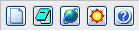
New Record - Add a new record to the database.
Menu Bar

File - Use to exit the program.
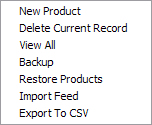
Database - Tools to add a new record, delete a record, view all records, backup or restore the database, import a product feed, or export products to a CSV file.
Tools - Access to the Froogle Signup web site or Google
Base Central.
Help - Program help, Froogle Instructions, and About
Tab Bar


Clicking any of
these allows you to navigate between screens, or exit the program.
Database Navigation
Bar

New - Adds a new record.
Prev - Go to
the previous record.
Next - Go to the next
record.
First - Go to the first
record.
Last - Go to the last
record.
Delete - Delete the current record. You will be
asked for confirmation before deleting.
Delete All - Delete
all records in the database. You will be asked for confirmation before deleting.
If you do accidently delete the database, select Database from the product
screen menu bar and then Restore. It is recommended to set the Preferences to backup the database on program
exit.
The record number out of the total record count is also displayed.